Creating a simple blog with static site generator Jekyll on Windows
Easily and Quickly set up Jekyll in a Windows environment!

Setup:
-
Clone this github repository: apdekock/jekyllWindows
-
Run cmd.bat which will set up the relative paths and provide a console with jekyll instructions.
Generate:
Quick-start Instructions for jekyll:
	1. jekyll new my-awesome-site
	2. replace the config in my-awesome-site\_config.yml with
	   the [relative path]_config.yml one.
	3. cd my-awesome-site
	4. jekyll serve
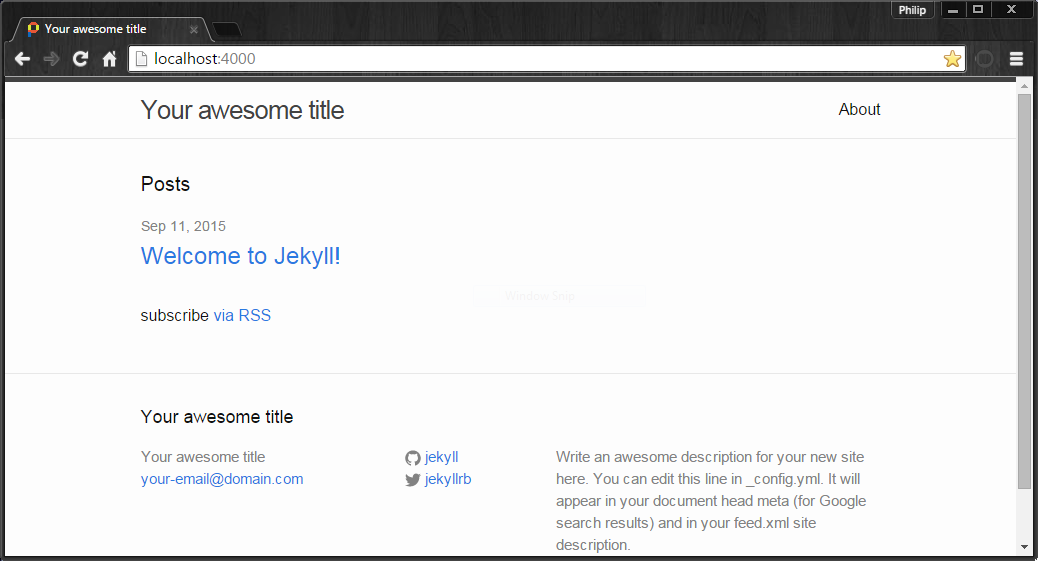
Now browse to http://localhost:4000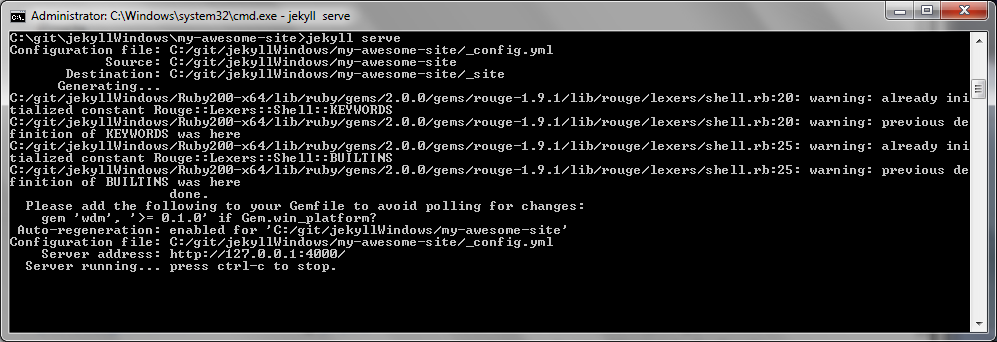
Click-able link to see the site below http://localhost:4000.
Creating a simple blog
I wanted to create a simple blog and did some investigation. I stumbled onto Jekyll which comes highly recommended.
I found an awesome step-by-step guide by Julian Thilo http://jekyll-windows.juthilo.com/ which allowed me to get set up. It’s a bit of a mission though to set up in a Windows environment.
Switching between laptops or reloading the OS and replicating these steps over and over seem excessive so I took it upon myself to create a plug-and-play version of the jekyll environment.
What is Jekyll?

Jekyll is a simple, user friendly static site generator powered by Ruby, and is also the engine behind GitHub Pages. It takes a template directory containing raw text files, runs it through Markdown (Liquid or Textile) converters, and generates a complete ready-to-publish static website. - http://mashable.com/2014/08/28/static-website-generators/
For more information check out the Jekyll Github repo.
What is GitHub pages?
Websites for you and your projects. - https://pages.github.com/
This blog is hosted in Github pages.
Instructions for using Jekyll with GitHub Pages
Not so vanilla
I needed to disable the highlighter in the _config.yml to get it working locally. I could enable it when pushing to GitHub pages.
For syntax highlighting I installed rouge locally, that is the reason for step [2] in the “Quick-start Instructions for jekyll” which replaces the vanilla _config.yml with one that uses the appropriate highlighter setting.
Works both locally and on GitHub pages but obviously no syntax highlighting:
highlighter: noneWorks locally after “jekyll install rouge”:
highlighter: rougeWorks on GitHub pages:
highlighter: pygmentsComplete _config.yml:
# Site settings
title: Your awesome title
email: [email protected]
description: > # this means to ignore newlines until "baseurl:"
  Write an awesome description for your new site here. You can edit this
  line in _config.yml. It will appear in your document head meta (for
  Google search results) and in your feed.xml site description.
baseurl: "" # the subpath of your site, e.g. /blog/
url: "http://yourdomain.com" # the base hostname & protocol for your site
twitter_username: jekyllrb
github_username:  jekyll
highlighter: rouge
# Build settings
markdown: kramdown
Versions
Granted, the versions in the apdekock/jekyllWindows repo are not the most recent. However, they are fit for purpose as they are compatible with GitHub pages, as well as with my environment.
| OS: |
|---|
| Windows 7 x64 Pro SP1 |
| Ruby download: |
|---|
| rubyinstaller-2.0.0-p645-x64.exe |
| DevKit download: |
|---|
| DevKit-mingw64-64-4.7.2-20130224-1432-sfx.exe |
Moral:
-
“Why do I have to watch a French movie, I didn’t do anything wrong.” — Phil Dunphy
Don’t punish yourself, clone the repo.